| Support Category: Course Progress | Navigation |
| Specialist Notes: |
Some courses have action items that have outbound links. If a user reports clicking a link or resource and is then unable to return to the course to proceed, first confirm that pop-ups are allowed. Then assist them in navigating back to the main course window by providing the SR below.
| Standard Response: |
We sincerely apologize for the difficulties you're experiencing with your course and the inconvenience it may have caused. Please note that once you click on the link/tab within your course, a new window may open; however, the course should still be open in your taskbar.
To locate and navigate back to your already-open course, please do the following:
1. Kindly move the mouse cursor to the very bottom of your screen, and you should see your taskbar with a series of icons.
2. Locate and hover your browser icon (Google Chrome would be red, green, and yellow with a blue circle in the center; Microsoft Edge would be a wave-shaped like an E; Firefox would be a fox chasing its tail; Safari would be a blue compass).
3. A series of little windows should pop up. Locate and click on the one that appears to be the course window to bring it up. [see the example shown in the image below]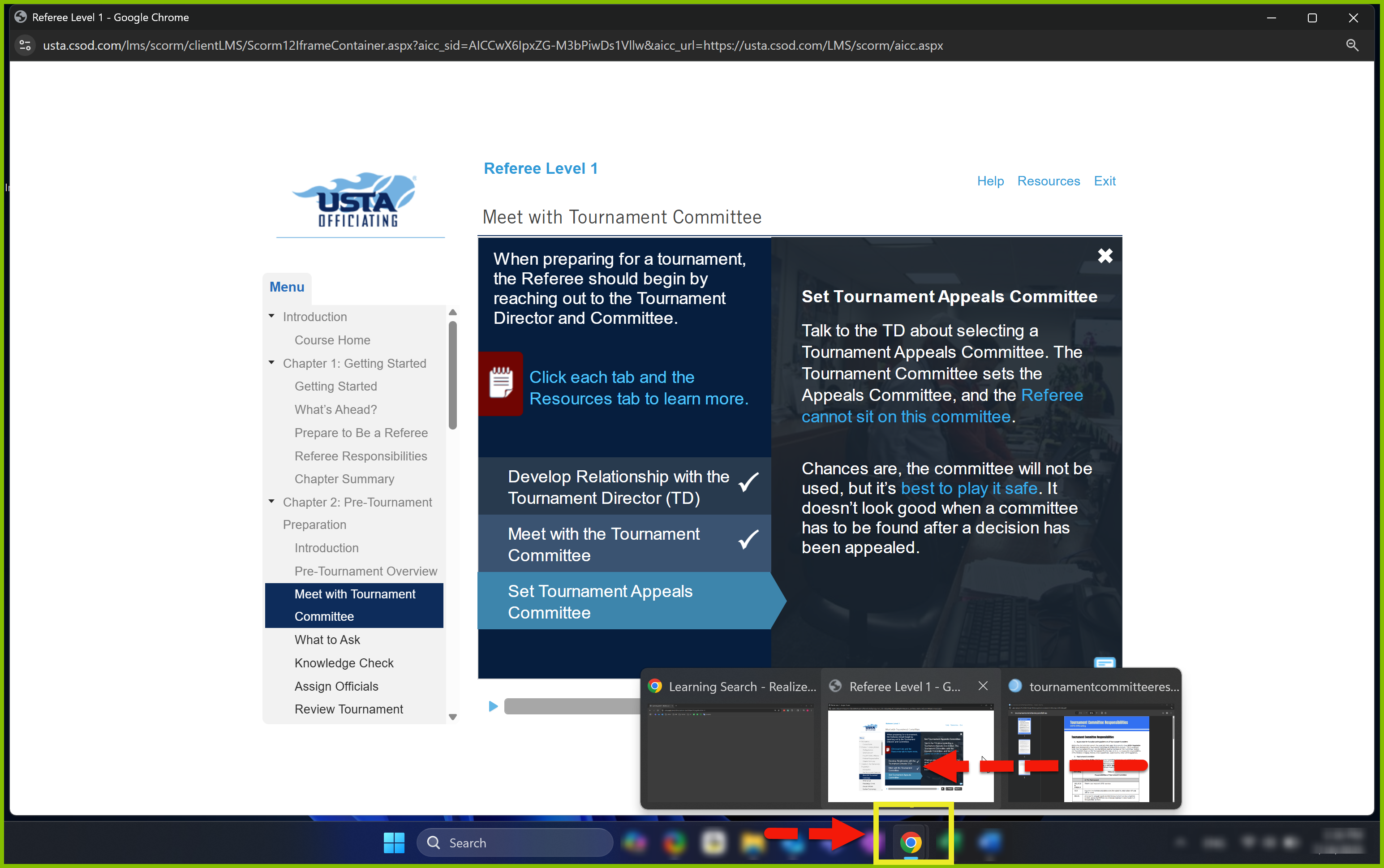
Please take your time and let me know if you are able to proceed or need further assistance with the instructions above. I'm standing by.
